R-report Documentation / Build knowledge
Study
Practice with learning tools, revisit annotations and reading, and understand your recorded progress.
Your review and learning hub
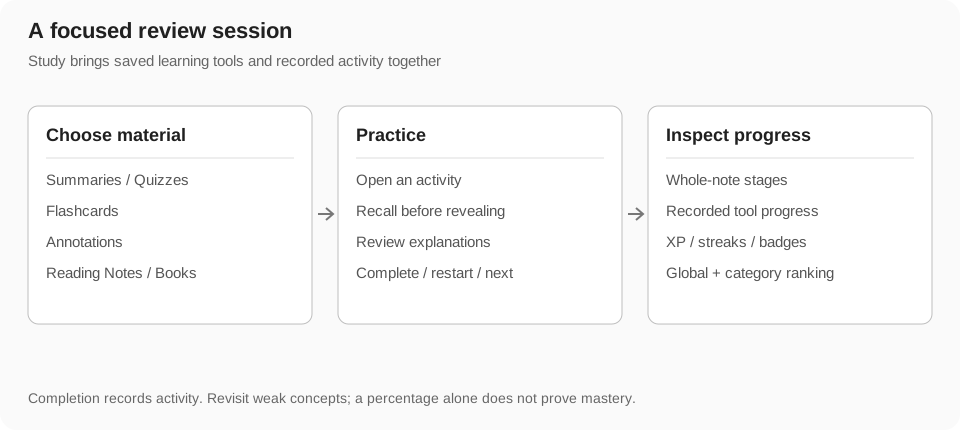
Study brings recorded learning activity together. Its navigation includes Progress, Ranking, Summaries, Quizzes, Flashcards, Annotations, Reading Notes, and Reading Books. Sign in to use your personal study data; a public source's popularity does not become your progress automatically.
Study organizes existing material and recorded actions. It does not automatically create a quiz or flashcard set for every note. Save supported learning blocks in a note or use available public activities, then return here to review what your account can access.
Understand the Progress overview
The overview combines available note stages, learning-block completion, task-related progress, and reading data. The progress ring and counts describe recorded items in the current overview. Adding new unfinished material can change the denominator and reduce a percentage even when your previous work remains recorded.
Use the overview to identify what to continue, then inspect an individual tool or note for detail. A quiz attempt, memorized card, checked summary item, and whole-note mastery stage are different signals. The rollup is not a scientific measurement of how much knowledge you retain.
Start a short study session
The suggested session chooses a small set of unfinished tools, prioritizing started material and mixing tool types where possible. This helps you finish a manageable review rather than opening every available item at once. The current session can offer a next activity after completing a tool.
- Open Progress and choose the suggested session or a specific tool card.
- Work through the activity in its dialog without immediately revealing answers.
- Complete the activity using its own controls.
- Use the offered next-tool action to continue, or close the dialog to return to Study.
- Check refreshed progress after closing; revisit source material for concepts you still cannot explain.
Review summaries
Summaries lists supported summary blocks. Open one to review its key points using the block's available completion controls. A summary is a review aid; return to the linked note when a point lacks enough explanation or evidence.
Use reset/restart when you want to work through the summary again. Restarting affects the activity's completion state rather than deleting the source note. A plain prose summary that was never saved as a supported summary block may not appear in this tool list.
- Choose Summaries and open a relevant item.
- Explain each point in your own words before marking it reviewed.
- Return to the source for weak points.
- Complete or restart through the offered controls, then inspect progress.
Take a quiz
Quizzes provides access to saved quiz activities. Open a quiz, choose an answer for each question, and inspect the feedback and explanation. The quiz records attempts where supported and accessible; the displayed score describes that attempt, not the entire note's mastery.
Check a questionable answer against the source. If you own the quiz, correct flawed questions in the note editor; if it is published by another author, keep your correction in a personal copy or discuss it through the appropriate channel.
- Open a quiz and read the question before choosing an answer.
- Review the explanation after answering and identify why alternatives are wrong.
- Complete the remaining questions and inspect the result.
- Use restart to practice again, and check recorded attempts/progress after returning to Study.
Practice with flashcards
Flashcards separates the prompt and answer so you can practice recall. Click or tap the card to reveal its other side. Use next and previous controls to move through the set, and mark a card memorized only after attempting recall.
The activity tracks memorized cards and its resulting percentage. A reset clears the relevant activity state for another round; it does not delete the card set. This manual memorized state should not be mistaken for a guarantee of long-term retention or an automatic spaced-repetition schedule.
- Read the front and recall the answer without looking.
- Flip the card, compare your answer, and revisit the source when needed.
- Mark it memorized if your recall was adequate, then move to the next card.
- Return later for another round and use reset or the offered state controls when appropriate.
Whole-note learning stages
The graduation-cap control records Not started, Learning, Reviewing, or Mastered for an entire note. Activating it cycles through the stages and returns to Not started after Mastered. Filled markers show the current self-assessment.
Any eligible signed-in reader can record their own stage for a public note without importing it first. Your stage is separate from other readers' stages and from a quiz result. Supported study tools can mark a note as started; they do not automatically prove whole-note mastery.
Return to Reading Notes
Reading Notes collects available notes with recorded stage information. Open a card to return to the note in the appropriate personal or public reader. Use the stage to decide whether you are still learning, revisiting, or confident enough to mark mastery.
If you cannot find a note here, check whether you recorded a stage and whether the note remains accessible. Reading a card preview alone is not the same as saving a stage. Import is optional for public reading progress but required when you want an owned editable copy.
Continue Reading Books
Reading Books shows available book-reading activity, including recorded progress and a route back to the book. Chapter-based classic-book content can provide a reader with its own navigation and learning context. Use the item to continue the book rather than searching for a separate unrelated note.
A source book, chapter progress, and an imported note are different objects. Check the reader's actual recorded state after a session. This view does not imply that every uploaded PDF or file automatically has chapter-level book tracking.
Review annotations and memos
Annotations gathers saved accessible highlights and memos with their note titles and selected passages. A memo adds your explanation to the highlighted source; a highlight without a memo remains a selected passage. Open a card to return to its source note.
Use this view to revisit questions and insights you recorded while reading. Edit or remove an annotation through the appropriate note controls when you have permission. An annotation is not a public comment, a chat history entry, or a flashcard merely because it contains a question.
XP, streaks, and badges
XP reflects recorded study activity and supports progression. A streak represents consecutive days with qualifying recorded activity; the overview can also show your longest streak. Opening the app without completing or recording a qualifying action may not contribute the activity you expect.
Badges mark milestones such as a first completed study item, memorized-card volume, a perfect quiz, overall halfway or full progress, and multi-day streaks. Locked badges show goals still ahead. Badge conditions describe recorded data, so correcting or resetting activity can affect what the overview reports.
- Use XP as feedback on activity rather than treating it as a grade for understanding.
- Build consistency with small sessions on several days instead of rushing through everything for a count.
- Inspect the source activity when a milestone or percentage seems surprising.
- Do not assume a streak uses the same time display as every external device or service.
Understand Ranking
Ranking shows global and available category rankings based on recorded study XP, with leading learners and your position when present. A category can have no eligible ranking data, and your position may be unavailable before enough activity is recorded.
These rankings differ from Weekly Top in Open Notes, which recommends recent public notes by likes and views. Study Ranking compares learning activity; it does not prove that a learner understands every concept better than someone with less XP.
Reset, retry, and recorded state
Use the tool's restart or reset control to begin another round. Closing an activity ends the current dialog session and refreshes the overview, while restarting changes its current activity state. Quiz attempt history and a whole-note stage are separate from a flashcard set's memorized count.
If an activity fails to save, restore the session or connectivity and check its actual state before repeating a large amount of work. Do not assume local visual completion always means a server update succeeded. Editing the underlying activity can also change what its progress means.
A sustainable review routine
- Choose one started note or a small suggested study session.
- Read a short summary without immediately treating it as sufficient understanding.
- Attempt a quiz or recall flashcard answers.
- Return to the source and annotate confusing points.
- Update the whole-note stage only when your broader understanding changes.
- Return on later days and continue weak or unfinished material.
Troubleshoot Study
- Study is empty: sign in, start a note stage, or use/save supported learning activities.
- A summary or quiz is missing: check whether it is a structured saved block, not only a response in chat, and whether the source is still accessible.
- A percentage went down: new unfinished items or changed activity content can alter the total being measured.
- A completed dialog did not update: close it to refresh the overview and check for a failed recording request.
- A public source is no longer accessible: the author may have removed it or changed visibility; an independently imported copy has its own state.
- Ranking differs from Weekly Top: they use different data and rank different things.
- Streak did not change: check that a qualifying action was recorded; merely opening a page may not count.