R-report Documentation / Share and discover
Connect
Manage relationships and groups, exchange messages, and prepare, test, schedule, and track newsletters.
People, messages, and newsletters
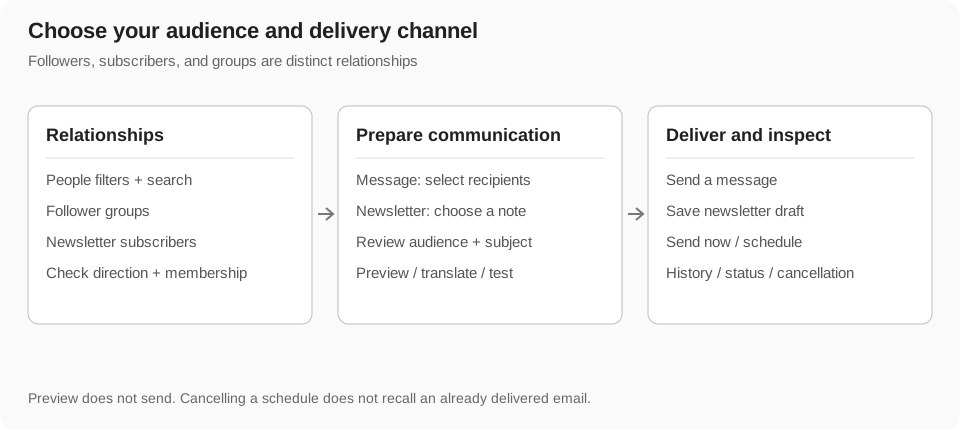
Connect helps manage your relationships and communicate with the people connected to your work. Its available areas include people/followers, follower groups, messages, newsletter subscribers, and newsletter drafts and history. Sign in to manage your personal relationships and check the current plan when a sending feature requires access.
Following, newsletter subscription, group membership, and a message thread are different relationships. Following an author is not the same as enrolling in their Course, importing a note, or consenting to every newsletter.
Browse and search people
The people list brings together available follower/following and subscriber relationships. Filters include all, follower-related, subscribers, and mutual relationships. Mutual means that you follow each other; the follower-related view can include either direction.
Search matches the loaded person's name and bio. A selected group restricts the list further, and counts describe that scoped relationship list. This is not a full-text search of every public profile or every conversation.
- Open the people or followers area and select the relationship filter you need.
- Search a name or bio keyword.
- Check any selected group when the results appear narrower than expected.
- Open the person's available profile or conversation action.
Follow and unfollow
Follow an author through the available public, profile, Import, or relationship controls to keep up with their activity. Inspect whether you are following them, they follow you, or the relationship is mutual. These directions can affect group and recipient selection.
Unfollow through the available relationship action when you no longer want that connection. In the people list, a bulk remove/unfollow action acts on selected people you currently follow; it does not delete their accounts or automatically unsubscribe every newsletter relationship.
Organize follower groups
Groups organize eligible followers for recipient selection and relationship browsing. Use the group management or tree controls to create and manage the groups offered by the interface. Group membership does not change a person's notes, account ownership, or the visibility of your private workspace.
Select people, choose the available group action, and review membership afterward. Only eligible relationships may be added; a person appearing as a subscriber is not automatically a follower you can group in the same way. Renaming or removing a group is different from unfollowing every member.
- Create or select a group in the group-management area.
- Enter selection mode in the relevant relationship list.
- Select the eligible people and check the count.
- Choose the target group and wait for the membership update.
- Open the group filter and verify its members before using it as an audience.
Read messages and conversations
Messages provides conversation and inbox/sent views where available. Open a conversation or message to inspect the sender, content, and time context. Read state and notification indicators help return to activity you have not yet inspected.
On a wide screen, a list and detail pane can appear together. On mobile, open a thread to focus on the detail view and use the back control to return to the list. A conversation popup provides another way to reply to a person without treating the text as a public note comment.
Compose a message
Available message access and send limits depend on the account and plan. A group or all-followers audience can involve many recipients; check the scope rather than treating it like a one-person reply. A typed name that was not confirmed as a recipient chip may not select the intended person.
- Choose Compose or reply within an existing conversation.
- Select an individual, follower group, or the offered all-followers audience through recipient suggestions.
- Review the recipient chips and remove unintended audiences before writing.
- Add the required subject/body content and use the available formatting controls for readable text.
- Review the content and audience, then Send once and wait for confirmation.
- Inspect the sent or conversation view rather than resending immediately if the result is uncertain.
Preview, translate, and send a test
Preview shows the email rendering generated from the selected note and subject settings. Use the preview to inspect text, images, links, and mobile readability. Preview generation does not send to your audience.
Where translation is offered, generate and review the translated content before using it. A translation can change terminology or tone and may consume generation usage. The send-test control lets you inspect an actual email through the offered test route; it is separate from the full audience send.
- Load the preview and inspect title, preview text, main content, and note link.
- Generate a translation if needed and review the result.
- Send a test through the available test control.
- Inspect the received email and source accessibility, then return to fix problems before distributing.
Save a draft or schedule delivery
Save draft preserves the editable newsletter without sending it. Return from the drafts list to resume. The compose flow also offers Send now or a scheduled date/time. Review the displayed time and the confirmed schedule rather than assuming it uses a different recipient's local clock.
Submitting a schedule creates a future send, not immediate delivery. A draft is different from a scheduled newsletter; saving the draft alone does not activate the schedule. Wait for the success confirmation and check the newsletter's status in history.
Notifications and channel boundaries
Notifications help return to relevant messages and social activity. Open the notification control to inspect activity and mark it as read through the available actions. Browser push permissions are managed in Setting and can affect whether an alert reaches the current device.
An in-app notification, a message thread, a newsletter email, and a public comment are separate channels. Avoid placing private information in a comment when you intended a direct message, and do not assume changing a push preference unsubscribes from newsletters.
Troubleshoot Connect
- People list appears incomplete: clear relationship/group filters and check whether the person belongs to your current follower or subscriber relationships.
- Cannot add a person to a group: check that the relationship is eligible for follower-group membership.
- Compose or Send is blocked: check sign-in, plan access, sending limits, and required recipient/content fields.
- A recipient is missing: use the supported follower/group/subscriber selector; typing a name alone may not confirm a recipient.
- Newsletter links do not open: inspect source-note sharing and the actual audience URL before sending again.
- Translation looks wrong: correct terminology and review the email preview and test before distribution.
- A scheduled email has not arrived: inspect the confirmed time, status, and any error. Scheduled is not the same as Sent.
- A send result is uncertain: inspect history first to avoid duplicate distribution.