R-report Documentation / Share and discover
Open Notes
Discover public knowledge, learn with video and AI Tutor, and import notes to make them your own.
What you can do with Open Notes
Open Notes is R-report's public library of notes shared by authors and learners. Use it to discover a subject, read the source material, ask AI Tutor questions, practice with learning tools, and import a private copy when you want to develop the material yourself.
You can read a public note without signing in. Sign in to keep your own learning progress, import notes into a workspace, and participate in account-based interactions. AI tools and audio generation have their own access and usage limits.
- Discover: search titles, descriptions, and tags; browse categories; explore Weekly Top and related recommendations.
- Understand: read the note, watch its videos in Study view, listen to readable text, and discuss the material with AI Tutor.
- Practice: use quizzes, flashcards, and summaries when present, or generate learning material with AI Tutor.
- Develop: import the source into your workspace, keep useful AI results, and add your own explanations and references.
- Connect: like notes, comment and reply, share a public URL, follow an author, or subscribe to their newsletter.
Find your way around
On a wide screen, the center holds the feed or the note you are reading. The left navigation provides access to the app and Open Notes categories. The right panel provides recommendations or AI Tutor, depending on the current view. A note can open from the feed in a reader overlay, or directly through its public URL.
On smaller screens, navigation and the right panel move into drawers. Open the menu to reach categories; open the AI panel when you need it and close it to return to a full-width reading area. Panel placement and the visible controls adapt to screen size.
The diagrams in this guide simplify the interface to explain the workflow. They are schematic illustrations; exact labels, spacing, and available controls can vary with your language, account, and the note's content.
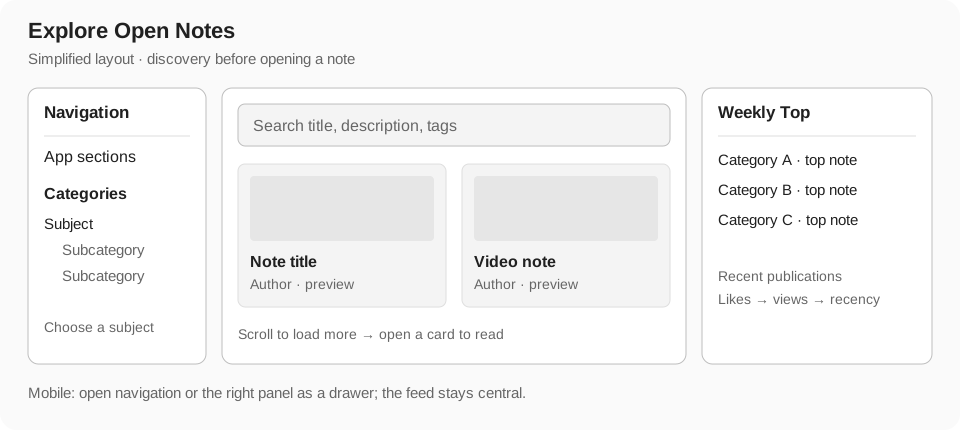
Search for a note
The feed search matches a keyword against a note's title, description, and tags. Matching is case-insensitive. Use a distinctive subject or title word, or a tag used by the author. Search narrows the notes currently loaded into the feed; it is not a full-text search of every note, video transcript, or AI conversation.
A selected category and the search keyword apply together. For example, selecting a science category and searching for a topic shows matching loaded notes in that category. A search that looks empty may be restricted by the current category or by how much of the feed has loaded.
- Open Open Notes and enter a topic or keyword in the feed search field.
- Review the matching cards and open a promising title or preview.
- If the results are too narrow, shorten the keyword or clear the category filter.
- Clear the search and browse farther down the feed to load more notes, then try the keyword again.
Browse categories and the feed
Categories group public notes by subject. Expand a category to inspect its subcategories, then choose the level that fits your interest. The selected category limits the visible feed; returning to the broader feed helps you discover material across subjects.
Cards provide a quick preview of a note, including its title and available description, image or video thumbnail, author information, and activity indicators. The content and layout of a card depend on the note. A video thumbnail identifies a source you can watch after opening the note.
The feed loads additional notes as you reach the end of the currently available list. Give the next batch time to load before continuing. Changing a category changes the browsing context, so a note visible in the general feed may no longer appear in a narrower category.
- Start with a broad category when you want to discover an unfamiliar topic.
- Use a subcategory and a keyword together when you already know your subject.
- Open a note to inspect the actual material rather than judging it only by a preview or activity count.
- If the feed is empty, clear the active filters before assuming that the subject has no public notes.
Discover Weekly Top
Weekly Top offers a starting point for exploring recent public notes across categories. In the general feed, it selects a leading note for each eligible top-level category from notes published during the last seven days. Subcategory notes are grouped under their top-level category.
Within each category, notes are ranked by likes, then views, then publication recency to break ties. The list itself follows the category order. It is a rolling seven-day discovery panel, rather than an all-time popularity list or a ranking of your personal learning progress.
Open a recommendation card to read the note and evaluate its sources. Thumbnails and activity counts help you scan the list, but popularity alone does not establish accuracy. Depending on the current note, the recommendation area can also show related notes or notes from its folder; its contents can change as you move between notes.
- A category may have no recommendation when no eligible recent note is available.
- The panel shows a limited set of recommendations, not every category or every public note.
- The study count can appear on a recommendation, but it is not the Weekly Top ranking criterion.
- Use categories and search to explore beyond the recommended selection.
Understand the action bar and counts
Use these controls for different purposes: like something useful, mark your learning stage to track progress, import material you want to edit, and share a note you want others to read. One action does not automatically perform the others.
- Like: express appreciation for a note. The heart indicates your like state and the displayed total shows note likes. Account-based interactions may ask you to sign in.
- Study: the graduation-cap control records your personal stage for the whole note. The accompanying community count is the number of learners with a non-zero study stage, rather than the number of clicks or video plays.
- Import: create a personal copy in your workspace. Its count describes import activity; it is separate from likes and study progress.
- Share: open the sharing flow to obtain a URL for others. Its count describes sharing activity; it does not mean that every recipient read the note.
- Views: where shown, this indicates reading activity. It is a discovery signal, not a measure of how well readers understood the material.
Watch a video in Study view
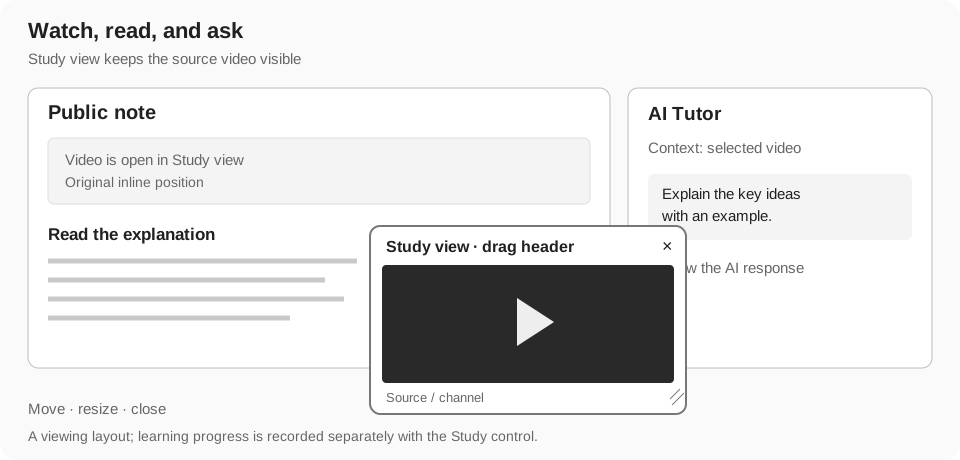
Study view moves a supported video from its inline position into a floating player. This lets you keep watching while reading the note or asking AI Tutor questions. It is a viewing layout, separate from the Study page and the note's learning-stage tracker.
For a YouTube block, use the video source row beneath the player to open Study view. On desktop, double-clicking the surrounding video block also opens it. Interactions inside the YouTube player belong to YouTube, so use the source row or surrounding block when you want an R-report action.
- Open a note containing a supported video and find the source row beneath it.
- Activate the source row to open the floating Study view. If a thumbnail is shown, choose the control to load the YouTube video.
- Drag the Study view header to move the panel. Use its resize handles on supported layouts to adjust the size; the panel is constrained to the viewport.
- Read the surrounding note or open AI Tutor while the player remains visible. The original inline position displays a placeholder while the video is in Study view.
- Close the floating panel with its X control to return the video to the note's inline layout.
Open AI Tutor and choose context
AI Tutor is the sidebar for discussing and transforming the note's material. Open the AI panel or select a readable block to bring its context into the sidebar. On wide screens, the panel sits beside the reader and can be resized; on smaller screens, it opens as a drawer.
Page context uses the note's available blocks. Block context uses the selected blocks, which helps focus a question on one passage, image, or source video. Inspect the selection before submitting. If no blocks are selected, the request can fall back to page context. Remove selected items when they are no longer relevant.
Context is not the same as automatic access to every external reference. A link identifies a source; video-aware actions can use available source information and transcripts, but some videos or external material cannot be retrieved. For a precise answer, provide the relevant text or choose a source with accessible content.
- Decide whether your question concerns the whole note or a specific block.
- Open AI Tutor and check the Page or Block context and any selected-block indicators.
- Type a question or choose a quick action appropriate to the selected content.
- Submit and wait for the response. Read the result alongside the original material and ask a follow-up if something is unclear.
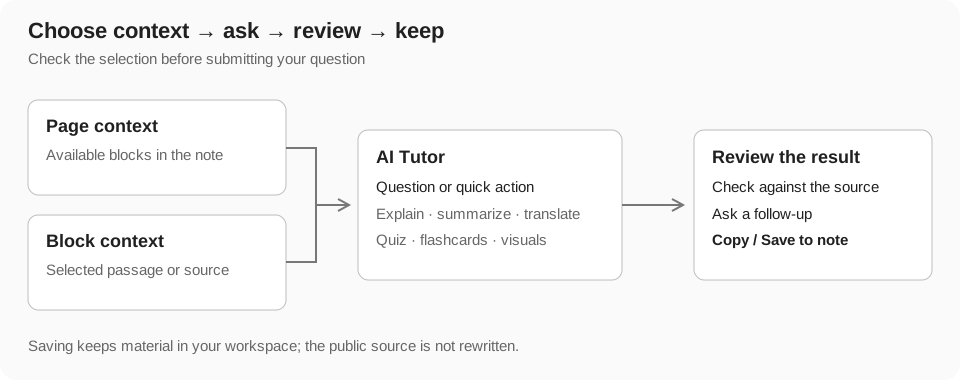
Ask useful AI questions
A good request identifies the material, the task, and the desired form of the answer. Start with one learning goal, then use follow-ups to test an explanation or request a more useful example. AI can be wrong or incomplete, so compare important claims with the note and original sources before relying on them.
Quick actions depend on context. Text actions include summaries, key points, and translation. Video actions include making a note, extracting key points, and asking for timestamps. Image, audio, or other source blocks can expose different actions. Only use the controls offered for the current content and account.
- Explain a passage: select it and ask, 'Explain this argument in plain language and give one example.'
- Compare ideas: use page context and ask, 'Compare the two approaches in this note. Include their assumptions and tradeoffs.'
- Analyze a video: select its block and ask, 'Summarize the main ideas and identify useful timestamps when the source supports them.'
- Check understanding: ask, 'Ask me five questions about this material, then explain the points I miss.'
- Translate: choose the translation quick action and target language, then review specialized terms against the original.
- Reduce scope: if a long source produces a vague answer, select fewer blocks and ask about one concept at a time.
Write or dictate a prompt
Type your request in the AI prompt field. Press Enter to submit, or Shift+Enter to insert a line break. The send control provides the same submission action. While a request is running, the prompt can be temporarily read-only; use the available stop control to interrupt generation if you no longer need the response.
The microphone control dictates speech into the prompt field on supported browsers. It is an input aid, separate from recording a source audio block or listening with Read aloud. Microphone access and browser speech-recognition support are required. Recognition uses the browser's language setting, which may differ from the app's display language.
- Choose the microphone control and allow microphone access if the browser asks.
- Speak your question while the listening indicator is active. Recognized text appears in the prompt field.
- Choose the microphone control again to stop dictation.
- Review the recognized text, correct names and technical terms, and submit the question deliberately.
Generate learning material with AI Tutor
Use the study and visual actions to turn a note or selected blocks into material you can review. Choose a format that matches your learning goal. The available tools can vary by content, plan, and current feature availability; generation consumes usage according to the applicable limits.
Generated results appear in the AI conversation. Structured results such as quizzes, flashcards, summaries, and presentations can have their own interactive controls. Creating a result in the sidebar does not overwrite the public note. Review it and use the available copy or save action to keep useful material in your own workspace.
- Quiz: generate questions to test comprehension. Attempt an answer before checking the explanation; verify questionable answers against the source.
- Flashcards: turn concepts into question-and-answer cards for recall practice. Keep each card focused on a small amount of information.
- Summary card: create a compact review aid, with list or callout formats when available. Use it after reading the source, not as a substitute for checking the source.
- Diagram or mind map: organize steps, relationships, or a hierarchy visually. Review connections and labels for accuracy.
- Presentation: organize the material into slides when the action is available. Inspect the sequence, explanations, and source coverage before sharing.
- Infographic or concept image: request a visual explanation through the available image tools. Check factual labels and embedded text before using it as a study reference.
Manage AI conversations and keep results
Use a new conversation for a separate learning goal. Use conversation history to return to earlier discussions associated with the note. The AI panel's search filters messages in the active conversation; it does not search the public feed or all of your notes.
Copy a useful response when you want to paste it elsewhere. In the public reader, Save to note opens a personal-save workflow through Import. The source note and the selected generated content can be carried into a personal copy. If the workflow includes a conversation, only your own eligible conversation is carried over.
Review what you are saving and its destination. Saving a sidebar result is distinct from posting a comment or publishing a note. The author and other public readers do not receive an edited version of the source merely because you asked AI a question or saved a result.
- Keep related follow-up questions in the same conversation so the discussion remains easy to review.
- Start a fresh conversation when switching subjects rather than continuing an unrelated thread.
- Search the active conversation for a distinctive word to find an earlier explanation.
- Save only results you have reviewed; remove mistakes and add your own interpretation in the personal note.
Practice with published study blocks
Some authors publish ready-to-use quizzes, flashcards, summaries, or other learning blocks inside the note. You can interact with these in the reader without first generating a new version with AI. The controls depend on the block type and the material its author supplied.
For quizzes, attempt the questions before reviewing answers and explanations. For flashcards, recall the answer before revealing it. For summaries, read the key points and return to the source when you cannot explain a point in your own words. A note without these blocks can still be read, discussed with AI, or imported for development.
Using a supported study tool can mark the note as started in your learning progress. A result from one activity does not establish mastery of the entire note. Use the note-stage control to record your broader self-assessment.
When a study block or a generated result exposes an AI action, you can discuss that item as context rather than the entire page. Ask for an explanation of a quiz answer, a clearer flashcard, or a correction to a summary, then check which item is selected before submitting. A sidebar discussion still leaves the author's published material unchanged.
Track your learning stage
The graduation-cap control tracks your personal stage for the whole note. Each activation cycles through Not started, Learning, Reviewing, Mastered, and back to Not started. Filled progress markers indicate your current stage. This is a self-assessment, so update it when your understanding changes.
You must be signed in to save a stage. A public note can be studied without importing it first. Your stage feeds your Study progress and does not change the author's content or anyone else's stage. The community count reflects learners whose stage is above Not started.
- Learning: use while working through the source and clarifying unfamiliar ideas.
- Reviewing: use when revisiting material and practicing recall.
- Mastered: use when you are confident in your understanding; revisit it when necessary.
- Not started: reset the whole-note stage when you no longer want it counted as started.
Import a note into your workspace
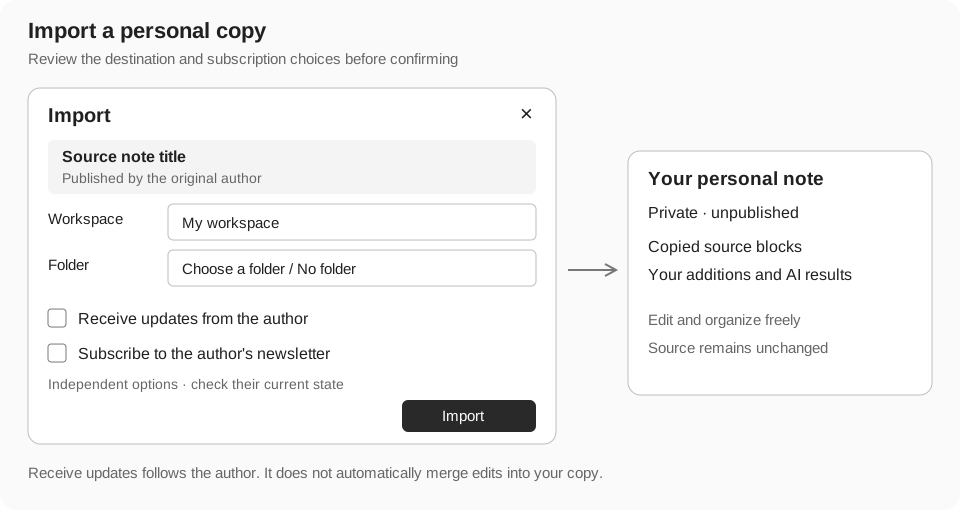
Import creates your own editable copy of a public note. Choose it when you want to organize the source, add personal explanations, keep AI results, or build further learning material. The imported copy starts as a private, unpublished note and retains its relationship to the source. The original public note remains unchanged.
If you are signed out, Import asks you to sign in. The app can return you to the source and resume the import dialog after authentication. Confirm the destination and options before completing the import.
- Open the public note and choose Import. When saving an AI response, use Save to note to enter the related workflow.
- Check the source title and author in the dialog to confirm that you are importing the intended material.
- Choose a workspace you can access. Then choose a folder in that workspace, or No folder to keep the copy at the workspace root.
- Review Receive updates and the newsletter subscription option when offered. These are separate choices and can be turned off before importing.
- Confirm Import and wait for completion. The app opens the new personal note for development after a successful import.
- Review the copied blocks, remove material you do not need, add your own explanation, and organize the note in your workspace.
Comment, reply, and discuss
Use comments for a discussion visible to readers of the note: ask about a source, suggest a correction, or explain a different interpretation. Comments differ from your AI Tutor conversation and personal imported note. Sign in to participate when prompted.
Choose the comment order to browse recent discussion or comments with more likes. Reply to a particular comment to keep the discussion connected; a reply can identify the person you are addressing. Like a useful comment or reply through its own heart control. Comment likes are separate from likes on the note.
- Read the existing comments to avoid repeating a question that has already been answered.
- Enter a specific question or contribution and submit it. Include enough source context for other readers to understand the point.
- Use Reply when responding to an existing comment, and check the reply target before sending.
- Use a delete control only where your permissions allow it. Deleting a comment is separate from editing or deleting the public note.
Listen with Read aloud
Read aloud turns readable note text into spoken audio. Use the available read-aloud action for a selected readable block or page context. Media-only blocks are not simply read as text. A floating audio player lets you listen while reading, with pause and resume, stop, volume, and seeking controls.
Existing generated audio is reused without a generation charge. If audio is missing, a signed-in reader can request generation and is charged according to the current usage rules. Anonymous readers can only play available cached audio when access permits; they cannot generate missing audio.
Stop ends playback while keeping the player open. Close dismisses the player. Text highlighting follows playback approximately; it should not be treated as an exact word-level transcript. Read aloud voices the note's text, while a source video's own audio remains part of its video player.
Use other media and structured content
The reader supports richer material when the author includes it. An image can be inspected in its available viewer; tables and diagrams organize relationships; audio and video blocks use their playback controls. Attached files and external references may open another source or download when the relevant control is available.
A course block or a note connected to a course can provide a structured learning path rather than a standalone article. Follow the available course or lesson navigation to continue in that context. Some classic-book material opens a chapter-based book reader; chapter context can also affect what AI Tutor discusses.
These are content-dependent features. A plain-text note does not automatically receive a video, course, book reader, or attachments. External embeds can also be unavailable because their source was removed, restricted, or blocked by the browser.
A complete learning workflow
- Find a subject: choose a category, search a keyword, or open a Weekly Top recommendation.
- Check the source: read the introduction, identify the author, and inspect the references before investing time.
- Study the material: read the blocks or move a source video into Study view so it stays visible while you read.
- Resolve questions: select a confusing passage or source block, open AI Tutor, and ask a focused question.
- Practice recall: use an existing quiz or flashcards, or generate a small set of questions from the relevant context.
- Record your stage: use the graduation-cap control to reflect Learning, Reviewing, or Mastered according to your understanding.
- Keep and develop: import the note or save a useful AI result, choose a workspace and folder, and review optional subscriptions.
- Make it yours: add your own explanation to the private copy, keep source attribution, and use the Study area when you return for review.
- Share or discuss: share the original public URL or add a focused comment. Publish your own developed version only when you deliberately choose to do so.
Troubleshooting and access limits
- No search results: clear the selected category, use a shorter title or tag keyword, and load more of the feed. Full note bodies and transcripts are not included in feed search.
- Weekly Top looks short or empty: it depends on eligible notes from the rolling seven-day window. Browse the feed and categories for older material.
- A video does not play: try its load control or original source link. Source restrictions and browser playback rules can prevent an embed from working.
- Study view is difficult to find: use the video source row beneath a supported YouTube block. The player's own clicks are handled by YouTube.
- AI answers the wrong material: check Page versus Block context, remove irrelevant selections, and submit a narrower question. If source retrieval fails, provide the relevant text directly.
- An AI action is unavailable or fails: check sign-in, guest-trial limits, plan access, remaining usage, and any rate-limit message. Repeated requests do not remove these restrictions.
- A workspace or folder is missing during Import: select the correct workspace first and wait for its folder list to load. Only destinations available to your account can be used.
- Import fails: keep the dialog open, review its message and destination, and retry after resolving the problem. Wait for the success navigation before assuming that a personal copy was created.
- An imported note does not reflect an author edit: this is expected for an independent copy. Review the public source separately before applying changes to your version.
- Learning progress does not save: sign in and try the stage control again. A failed save can restore the previous state rather than retaining an unsaved stage.
- Read aloud asks for generation: cached playback and new audio generation have different access and credit rules. Sign in and check your usage when new audio is needed.
- A shared note is unavailable: it may have been removed or its visibility changed. Ask the author for a currently accessible link.